Category: Uncategorized

FERC Posts Updated Filing Types

On October 31, 2012, the Federal Energy Regulatory Commission (FERC) issued a notice under docket RM01-5 entitled “NOTICE OF CHANGE OF ETARIFF TYPE OF FILING CODES”. The full text of the notice may be downloaded from eLibrary.  Below is a summary of the changes to eTariff filing types.

Filing Code: 1220
Industry:Electric
FERC Program:Power Administrations
Description:Rate Extensions
Changes:This new code will permit Federal Power Marketing Administrations to file for extensions of rates consistent with 10 CFR 903.23 (2012) of the Department of Energy’s regulations. Tariff records included in such filings will be automatically accepted to be effective on the proposed effective date without further Commission action. The effective date of the new Filing Code is November 18, 2012.

Impact to TariffShark

New TariffShark software releasesthat accommodate the FERC changes will be available soon. You are only affected by this notice if you file electronic Tariffs under FERC’s Power Administrations program.

Hosted Customers

If you are impacted by the new Filing Type and your TariffShark servers are hosted by us, we will see that you are running the latest FERC-compliant server software on or before November 18, 2012. The upgrade will be done during the regular maintenance window (weekdays after 7pm and before 7am…or on the weekend).

All software releases (current and past) are available on the Downloads page on the TariffShark website.

As always, if you have questions or comments, you may post them below or contact TariffShark Support.

The Importance of Updating Status

FERC has a database of electronic tariffs plus software that staff members use to fulfill the Commission’s eTariff obligations.  It is important that the FERC database and your TariffShark database contain the same tariff information.

Some changes to eTariff data are initiated within TariffShark (for example, proposed changes to tariff content).  When such changes are submitted to FERC via the eTariff filing process, that data ends up in FERC’s eTariff database.  In other words, essentially, FERC’s database is updated as a direct result of you submitting an eTariff filing.

Other changes to eTariff data are initiated by the Commission (for example, the assignment of a docket number or the approval of a proposed change to tariff language).  Unlike the submission of an eTariff to FERC, which arrives at the Commission in a computer-friendly XML format, changes that FERC makes to the data are communicated the old-fashioned way: via email and Commission order.  This manual communication means that it is up to you, the TariffShark user, to manually update the data in TariffShark so that it reflects FERC actions.

What Data Changes Result from FERC Action?

Filing Status

When an eTariff filing has been accepted by the Commission, you will receive an email with the subject “FERC Acceptance for Filing in [DOCKETS]”.  Upon receipt of this email, the Filing Status should be updated to “Filed”.

After a statutory period elapses or after FERC issues an order in response to a Filing, the Filing Status should be updated to “Complete”.

Refer to this TariffShark Blog article to learn more about Filing Status.

FERC Order Date

You may record the date of FERC’s order issued in response to your Filing in the FERC Order Date field.  This is informational only within TariffShark as there is no business logic or validations that depend upon it.

Docket Number

When you receive the FERC email with the subject “FERC Acceptance for Filing in [DOCKETS]” for your Filing, it will contain the docket number.  You may record this data in the Docket Number field, which is informational only in TariffShark (no business logic or validations depend upon it).

FERC Effective Date

A FERC order issued in response to an eTariff Filing may accept the tariff records’ proposed effective dates … or it may specify FERC-mandated effective dates (for example, when suspending a Filing).  It is important that the effective dates accepted or mandated by FERC be recorded in TariffShark.

FERC Response

Tariff Record Versions in a Filing start out as “Draft” FERC Response in TariffShark.  When a Filing is marked with a Status of “Filed”, the Filing’s Tariff Record Versions acquire a “Pending” FERC Response.  At the end of the appropriate statutory period or when FERC issues its order (which is when the Filing Status should be updated to “Complete”), the FERC Response of each Tariff Record Version in a Filing must be updated appropriately.  Example values for FERC Response are “Approved”, “Rejected”, and “Suspended”.

Refer to this TariffShark Blog article to learn more about TariffShark’s FERC Response field.

Why Is It Important to Update the FERC Data in TariffShark?

Filing Status and the FERC Response recorded on your Filings’ Tariff Record Versions play a critical role in TariffShark’s Filing validations.  If these data values in TariffShark do not reflect their values in FERC’s eTariff system, when TariffShark performs its Filing validations, it could report a false validation error or miss a validation error altogether.  An example of each is provided below.

False Validation Error Example

Validation Rule ID F019 – “When making an Withdrawal filing, the associated filing must have a status of “Filed” thus indicating that FERC has not yet acted upon it.”

If you left the Status of a Filing as “Draft” or if you prematurely updated the Status to “Complete”, this validation error will result when you attempt to withdraw the Filing.

Missed Validation Error Example

Validation Rule ID R009 – “Regarding : There is more than one version of this Tariff Record filed with an effective date of FTRV.ProposedEffectiveDate.  In the event that FERC approves these, a unique priority must be assigned to each.”

When more than one version of a Tariff Record is filed with the same effective date, a unique effective priority must be assigned to each.  TariffShark is not able to provide this feedback and alert you to potential effective priority value ambiguity if FERC Response values haven’t been updated accurately.

If you have questions about Filing Status, FERC Response or other FERC-related TariffShark data fields, we’d love to hear from you.  Please comment below or contact TariffShark Support.

TariffShark "in the Cloud"

TariffShark consists of a client application, called TariffShark Premier, that runs on a Windows desktop computer plus server-side components that run on a Windows server.  eTariff filers use TariffShark Premier to prepare and make eTariff filings.  The data they see and update on their screens and all of the documents that comprise eTariff filings is stored within TariffShark’s server components.  If you are a TariffShark user, you already knew this.  But, did you know that the server components can be hosted “in the cloud”?

What is Hosted TariffShark?

Many of our customers are using Enterprise TariffShark, in which both the desktop and the server components run within the enterprise.  Under the Hosted TariffShark model, the server components run “in the cloud” (actually, in the TariffShark data center).  From a desktop user’s perspective, the TariffShark Premier desktop application runs exactly the same as in the Enterprise approach.

What are the advantages of Hosted TariffShark?

  1. Data backups are provided by Links Technology.  The data is encrypted and stored online in multiple, redundant data centers, so access to the backups is always available.  This service frees your IT resources from dealing with the backup of tariff data.
  2. Server maintenance is performed by Links Technology.  Routine tasks; such as applying periodic OS and system updates, verifying anti-virus protection, reviewing event logs, and checking health and capacity of hard drives; are performed by Links Technology engineers.  Your precious IT resources do not need to perform these tasks.
  3. Work with TariffShark from anywhere you have an Internet connection.  You are not tethered to your desk or corporate VPN.
  4. It’s easy to provide outside counsel with access to your TariffShark data.  Simply create a user account and grant the appropriate access.  Because the TariffShark server is hosted in a data center outside of your enterprise, it’s just as easy for outside counsel to connect as it is for you.
  5. In the event that you need the help of an outside eTariff filing service provider to do a complex eTariff filing, setting that up would be as easy as granting access to outside counsel.  By the way, Links Technology offers a service to help assemble eTariff filings when you need help or are unable.
  6. Upgrading to a new TariffShark release is a breeze because Links Technology takes care of updating all server components.  Your IT staff might only be required to assist with upgrading TariffShark Premier on your desktops, but TariffShark Support is able to assist with that, too.

Is Hosted TariffShark safe and secure?

In a word: yes!

  • All Hosted TariffShark servers run in a Tier 4 data center that is SAS 70 Type II certified.
  • Links Technology has established a separate disaster recovery (DR) site for all Hosted TariffShark customers.  In addition, the site and related DR procedures are fully tested semi-annually.
  • All of the data exchanged between the TariffShark Premier client application and the TariffShark servers is transmitted using 128-bit SSL encryption.  This is the same technology used when banking online and when making online credit card purchases.

Will we be able to test new software releases?

Some Enterprise customers maintain test and production TariffShark environments.  This is done, in part, so that new software releases may be tested before rolling them out to a production environment.  There is an option within Hosted TariffShark whereby test and production environments would be maintained.

Will we have to pay more for Hosted TariffShark?

The Hosted TariffShark service includes licensing, maintenance, and support, just like an Enterprise arrangement.  Above and beyond that, though, Hosted TariffShark includes everything needed in the data center (including the data center itself) to run TariffShark’s server components.  Among these value adds are data backups, server maintenance, disaster recovery services, and software updates.  A Hosted TariffShark contract does not require the upfront purchase of software licenses, so the initial cost is actually lower than Enterprise TariffShark.

Can we convert our Enterprise TariffShark to Hosted?

Yes.  Technically, it’s a matter of moving your database to the TariffShark data center and setting up a new application server there for your use.  These steps are quick to execute because our engineers have done so repeatedly.  Contractually, your TariffShark agreement with Links Technology would need to be amended.

If you have technical questions about Hosted TariffShark, we’d love to hear from you.  Please comment below or contact TariffShark Support.  If you’d like a quotation, contact Sales.

TariffShark Document Processing

If you’ve been working with TariffShark for a while, you are probably familiar with the shark that swims from time to time in the status bar.


The swimming shark is an indication that the TariffShark software is using your computer to process a Tariff Record Version’s (TRV’s) content in the background.

TRV content processing is pretty intense…it does a lot of work.  Even though you may have edited and saved the marked version of a TRV’s content, TariffShark actually builds and saves five (5) documents.

  1. marked document in Microsoft Word format
  2. clean document in RTF format
  3. plain text document
  4. marked document in PDF format
  5. clean document in PDF format

This work is so intense, in fact, that TariffShark distributes it across all users who are logged into TariffShark.  Usually, the shark starts swimming shortly after you save a TRV’s content in Microsoft Word.  Sometimes, however, the shark may start swimming even if you haven’t edited a TRV’s content.  That happens when your computer is helping out your fellow tariff worker by processing his/her TRV content.

It’s worth noting that the shark does not swim to process “whole document” content; it only works on section-based and sheet-based TRVs.

The Shark Is Bugging Me

The shark tries to use your computer to process TRV content when it’s not being used for other things.  However, from time to time, you may be so busy that you just want the shark to SLOW DOWN.

After each time the shark swims, he takes a nap (because he gets tired).  You can control the duration of his naps to slow him down.  The procedure for doing this differs between TariffShark Premier and TariffShark Hammerhead.

TariffShark Hammerhead

A toolbar button is provided for the purpose of adjusting the Queue Processing Interval.


Click the inverted triangle next to the shark and a slider control appears that allows you to adjust the Queue Processing Interval.  When slid all the way to the left, the shark will nap for only 5 seconds between documents that he processes.  When slid all the way to the right, the shark will nap for 5 minutes.


In addition, clicking the shark icon (just to the left of the inverted triangle) repeatedly will alternate the image between an uncaged shark and a caged shark. When the shark is uncaged (which is the default setting), TariffShark continues to process TRVs in the background at the interval specified.  When the shark is caged, TRV content processing is suspended on your desktop.  We strongly discourage leaving the shark caged for extended periods as this could cause TRVs to build up in the queue.

– Uncaged Shark           

– Caged Shark

TariffShark Premier

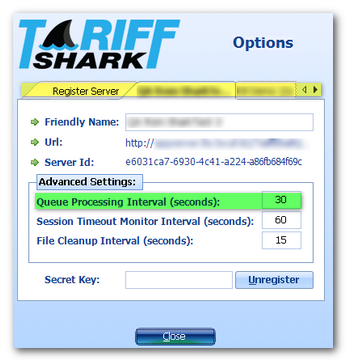
In TariffShark Premier, click the Options link on the login dialog.


On the resulting “Options” dialog screen, click on the tab that corresponds to the server to which you are connected (highlighted yellow below).  Then set the “Queue Processing Interval” value to a number between 5 and 300 seconds (highlighted green below).  The higher the number you enter, the longer the shark will nap after each time he goes swimming.


———-

There’s another way to slow the shark down…by telling him to work on your stuff only.  In large organizations, ones that file tariffs for mulitple regulated companies, different groups of people might have responsibility for different companies’ tariffs. The shark’s default behavior is to work on the content of any TRV that belongs to any company.

If you find that your shark is spending too much time processing other companies’ TRVs, he can be configured to work on your company only.  This is an advanced setting and one that requires the assistance of TariffShark Support.  If you think this setting will help you to be more productive, please contact the TariffShark Support team and we will be happy to assist.

If you have questions about TRV content processing and the animated shark, we’d love to hear from you.  Please comment below or contact Support.