Category: How To

View Recent Filings Easily

You’re back in the office bright and early, you’ve had your first few sips of coffee, and now you’re ready to jump back into the Filing you were working on yesterday.  Did you know that you can bring up the Filing Details quickly in TariffShark?

On TariffShark’s “View” menu there’s an item labeled “Recent Filings”.  As shown below, it provides a list of the most recently viewed Filings (up to 8).
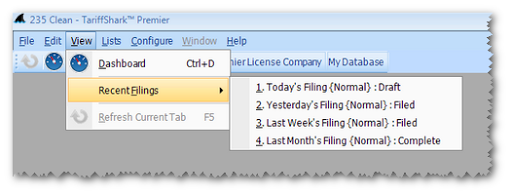

The list of Filings is organized with the most recently viewed Filing at the top and the least recently viewed one at the bottom.  If you wanted to open “Last Week’s Filing”, simply click on it and the Filing Details screen appears.
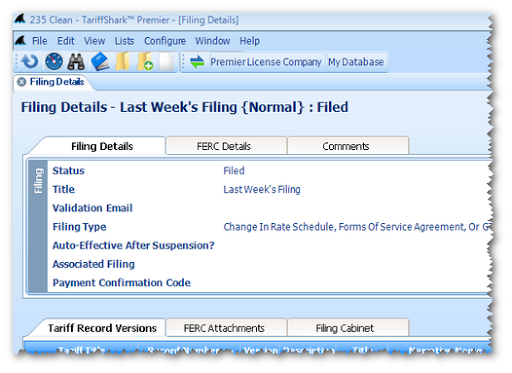
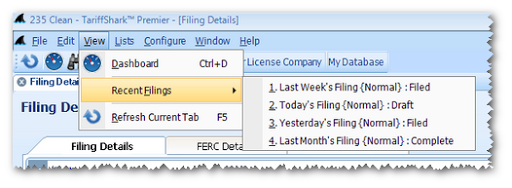
Note that after viewing “Last Week’s Filing”, it now appears at the top of the list of Recent Filings.
We hope this feature saves you time working on your tariffs and filings so that you can better enjoy your morning coffee.

As always, if you have questions or comments, please post them below or contact TariffShark Support.

Searching in TariffShark

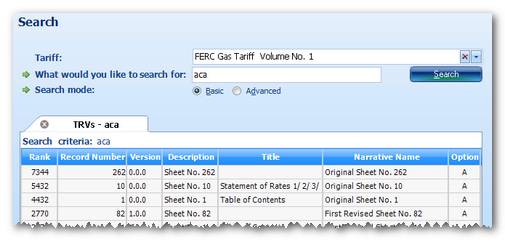
The TariffShark Premier desktop application has a built-in search funtion. Click the binoculars icon on the toolbar (shown below)…or select “Edit | Search” from the menu…or press Ctrl-F on your keyboard and the Search form is displayed.

On the Search form, simply type in the word or words you seek and click the Search button.  TariffShark will search Filings and Tariff Record Versions to find what you are looking for.

Filing data that is searched:

  • Title
  • Docket Number
  • Comments

Tariff Record Version data that is searched:

  • Description
  • Title
  • Narrative Name
  • Section Number
  • Comments
  • Plain Text Content

Search results are displayed in tabs.  TariffShark displays new tabs for every search performed.  If you search for a word that is found in both Filings and Tariff Record Versions, your search will return two tabs: one for Filings and one for Tariff Record Versions.

Give it a try and please feel free to comment below with your feedback.

  • Title
  • Docket Number
  • Comments

Changing a Filing’s Type

One of the questions most frequently asked of the TariffShark support team is how to change the Filing Type of a Filing.  The short answer is that once a Filing has been created in TariffShark, its Filing Type cannot be changed.  This may sound like the worst possible answer, but the news isn’t all bad.  Follow the steps outlined below and you’ll be up and running with a new Filing of the correct Filing Type in short order.

You’ll need to create a new Filing with the correct Filing Type and move all of the content from the incorrect Filing over to the new one…and also delete the incorrect Filing.

  1. Create a new Filing of the correct Filing Type.
  2. Deleting a Filing will also delete its FERC Attachments and Filing Cabinet items.  Therefore, save these to your desktop or network before deleting the incorrect Filing.
  3. Delete the incorrect Filing.  This also deletes its Filed Tariff Record Versions (FTRVs), but not the underlying Tariff Record Versions (TRVs).  Therefore, you have not lost any of the changes you’ve made to the content of your Tariffs.
  4. Using the TariffShark commands provided for this purpose, recreate all of the FERC Attachments and Filing Cabinet Items in the new Filing and upload the content saved in step 2 above.
  5. Add the TRVs that used to be in the old Filing to the new one.  You can do this en masse by bringing up the Filing Details and clicking the “Add Tariff Record Versions” command in the SmartBar.

Step 5 uses a little-known command that can save a lot of time.  For Filings with many tariff changes affecting many tariff records, using the “Add Tariff Record Versions” command means that the TRVs don’t have to be added to the new Filing one at a time.