eTariff Filing Level Associations

FERC’s eTariff rules allow you to associate an eTariff filing with an earlier eTariff filing.  This article will explain why you might want to associate two filings and how to do this in TariffShark.

When submitting an eTariff filing that relates to, acts upon, or extends an earlier eTariff filing, you associate it with the earlier filing.  Based upon the type of filing you are preparing, you may or may not be required to make an association with an earlier filing.

Normal – A “normal” filing generally initiates a statutory action against an existing eTariff.  As such, an associated filing would not be expected.

New – A “new” filing establishes a new Tariff Id (FERC’s term for what TariffShark calls a Tariff Database).  Filing associations are not expected within this type of filing.

Refiled – Like a “new” filing, a “refiled” filing establishes a new Tariff Id.  Filing associations are not expected within this type of filing.

Compliance – The circumstances surrounding a “compliance” type filing vary greatly.  Sometimes it makes sense to associate a “compliance” filing with an earlier eTariff filing and sometimes it doesn’t.

Amendment – An “amendment” filing proposes changes to an earlier eTariff filing pending before the Commission.  Therefore, “amendment” filings should always be associated with an earlier filing.

Motion – A “motion” filing motions into effect tariff record from an earlier eTariff filing.  Therefore, “motion” filings should always be associated with an earlier filing.

Withdraw – The sole purpose of a “withdraw” type filing is to withdraw an earlier eTariff filing pending before the Commission.  Therefore, “withdraw” filings should always be associated with an earlier filing.

Report – A “report” filing is used to supplement the record of an earlier eTariff filing pending before the Commission.  Therefore, “report” filings should always be associated with an earlier filing.

Cancellation – A “cancellation” filing proposed to cancel an entire Tariff Id (FERC’s term for what TariffShark calls a Tariff Database).  Filing associations are not expected with this type of filing.

In TariffShark, associating a Filing with another one is straightforward.

  1. Use the “Update Filing” command in the SmartBar to open the Update Filing screen for the Draft Filing you are preparing.
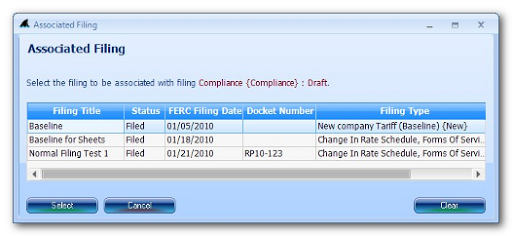
  2. Click the ellipsis button next to the Associated Filing field to select an earlier Filing to which an association should be made.
     
  3. Select the Associated Filing by clicking on it in the grid and then click the “Select” button.

If you would like to know more about Filing level associations or if you have any other questions, please comment below or contact TariffShark Support.
Effective Dates in TariffShark

There are three separate effective date fields in TariffShark.  Two of these are stored in the database and the other is calculated (or derived) by the TariffShark software for display.  This article describes each of these effective dates in detail.

Proposed Effective Date

The Proposed Effective Date is the one you enter when you place a Tariff Record Version into a Filing.  This is the date that is sent to FERC in the XML.  This date is stored in TariffShark as a Filed Tariff Record Version (FTRV) data element.

FERC Effective Date

The FERC Effective Date is the one approved by FERC.  This information is often included in a FERC order.  However, it can also be inferred depending on the FERC program (gas, oil, electric) and the circumstances surrounding the filing (for example, oil tariffs typically go into effect 30 days after filing without the issuance of a FERC order).  This date is stored in TariffShark as an FTRV data element.

Effective Date

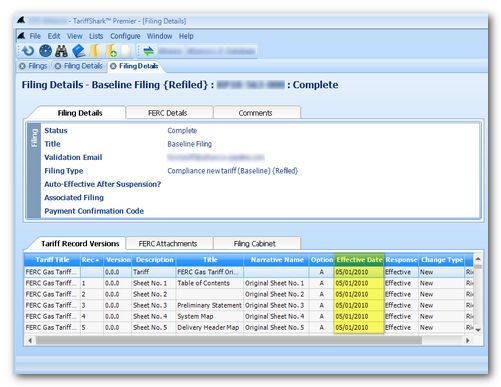
The Effective Date, which appears in several grids in TariffShark, is a computed date.  This date is perhaps most frequently seen in the Tariff Record Versions grid on the Filing Details screen (shown highlighted below).


In TariffShark Hammerhead Release 4.0.x and earlier, the rules for computing “Effective Date” are…

  • If the FERC Response of the FTRV is Approved Subject to Conditions, Pending, Rejected, Draft, Overtaken by Events, Pro Forma Ordered, or Withdrawn, the Proposed Effective Date is used.
  • If the FERC Response of the FTRV is Approved, Effective, Suspended, or Retired, the FERC Effective Date is used.  If the FERC Effective Date is empty, however, the Proposed Effective Date is used.

The rules for computing “Effective Date” in TariffShark Hammerhead SP1 Release 4.1 and later are…

  • If the FERC Response of the FTRV is Pending, Rejected, Draft, Overtaken by Events, Pro Forma Ordered, or Withdrawn, the Proposed Effective Date is used.
  • If the FERC Response of the FTRV is Approved, Approved Subject to Conditions, Effective, Suspended, or Retired, the FERC Effective Date is used.  If the FERC Effective Date is empty, however, the Proposed Effective Date is used.

If you would like to know more about effective dates in TariffShark or if you have any other questions, please comment below or contact TariffShark Support.

Back to Basics: Make a Filing Using TariffShark

This blog article outlines the steps that need to be taken in TariffShark in order to Create, Submit, and Record the Results of a basic eTariff filing (one that proposes textual changes to tariff content).

Although there are variations in the regulations that govern companies across the industries and FERC Programs that fall within the purview of eTariff, the steps outlined below are essentially the same.  This article uses generic terminology that applies across Programs.  However, some users must follow different procedures, so these are noted below.

Create

  1. Create Filing
  2. Update the details of the Filing
    In particular, Validation Email is needed for all Filings.  Other pieces of data may or may not be necessary for your particular Filing.
  3. Create Tariff Record (TR)
    If you are introducing a new section or sheet to an existing tariff, you would need to create a Tariff Record.  In most filings that are proposing textual changes to tariff content, new Tariff Records are not required.
    Note that when introducing a new tariff, you would create a Tariff in TariffShark.
  4. Create Tariff Record Version (TRV)
    Tariff content exists in TariffShark in TRVs.  A TRV is a version of a Tariff Record.  Whenever you propose content changes to a TR, a new TRV is required.
  5. Build TRV Content
    The TRV created in step 4 has no tariff content until you put content in it.  In this step you tell TariffShark how to create (or build) content for the new TRV.
    Note that if the TRV belongs to a “whole document” TR, you must skip this step.
  6. Edit TRV Content
    Editing the TRV’s content opens it in Microsoft Word where you may make the desired textual changes to the content.  Changes are typically made in Word’s “track changes” mode so that the changes are automatically “marked” as you enter them.
    Note that oil industry filers don’t use “track changes” mode.
    Note also that if the TRV belongs to a “whole document” TR, this step involves uploading the content as opposed to editing it in Microsoft Word.
  7. Repeat 3-6 as needed to make additional textual changes to tariff content.
  8. Write the Transmittal Letter for your Filing and upload it to TariffShark as a FERC Attachment.
  9. Your Filing may require additional FERC Attachments.  Create and upload these into TariffShark.

Submit

  1. Validate your Filing.  TariffShark will apply dozens of validation rules to your Filing and alert you to potential issues.
  2. Generate FERC XML and download it from TariffShark.
  3. Submit your filing to FERC at http://www.ferc.gov/docs-filing/efiling.asp.
  4. Update the Status of your Filing to “Filed” in TariffShark.

Record the Results

  1. In some Programs and some filing scenarios, FERC will issue an order telling you what they think of your Filing.  Other times, no news is good news and after a period of time your tariff changes may be considered effective.  In any event, when the time is right…
  2. Update the Status of your Filing to “Complete” in TariffShark.
  3. Update (a) the status (called FERC Response in TariffShark) of the TRVs in your Filing and also (b) the FERC Effective Date.  The “Record FERC Order” screen in TariffShark simplifies this process.

This article has presented a simplified view of the TariffShark steps to creating, submitting, and recording the results of a basic eTariff filing.  Though some complexities lurk within the steps listed above, feel free to refer back to this article as a basic reference or checklist of the TariffShark steps when working on such filings.  Future blog articles will dive deeper into some of the steps outlined above.  More complex eTariff filing scenarios (such as cancellations, withdrawals, amendments, and motions) will be addressed in future blog articles, as well.

If you have questions or comments, please post them below or contact TariffShark Support.

New TariffShark Releases Available Today

On Tuesday, May 31, 2011 (and again on June 7, 2011), FERC posted an updated definition of eTariff filing types.  We blogged about it a couple weeks ago.

New TariffShark software releases that accommodate the FERC changes are available now.  We strongly recommend that you follow one of the upgrade paths described below.

If you’re running TariffShark Release 1.0 (previously called v1.0)…

  • You may update to TariffShark Release 1.1.  If you do this, only the database and application server components are affected.
  • You may also update to TariffShark Release 2.1 or 3.1.  If you do this, all components (database server, application server, and desktop clients) must be updated.

If you’re running TariffShark Release 2.0 (previously called v1.1)…

  • You may update to TariffShark Release 2.1.  If you do this, only the database and application server components are affected.
  • You may also update to TariffShark Release 3.1.  If you do this, all components (database server, application server, and desktop clients) must be updated.

If you’re running TariffShark Release 3.0 (previously called v1.1.172)…

  • You may update to TariffShark Release 3.1.  Only the database and application server components are affected.

Hosted Customers

If your TariffShark servers are hosted by us, we will see that you are running FERC-compliant server software on or before July 1, 2011.  The upgrade will be done during the regular maintenance window (weekdays after 7pm and before 7am…or on the weekend).  We will notify you in advance once the server upgrade has been scheduled…and again when it has been completed.

All software releases (current and past) are available on the Downloads page on the TariffShark website.

As always, if you have questions or comments, please post them below or contact TariffShark Support.