Category: Uncategorized

Superseded Version and Basis Version

Background

Prior to the implementation of FERC Order 714 (April 2010), interstate gas tariffs had been filed electronically for years.  In those days, tariffs were broken into tariff sheets, which had very specific requirements for the information displayed in their headers and footers.

One specific header requirement was that when a tariff sheet was filed to replace an earlier version of the same sheet, the header must read as highlighted in the example below.

The Tariff Filing & Management System (commonly known as TFMS), a software product which was widely used throughout the gas industry, supported this header requirement by providing an association between a tariff sheet being filed and the sheet it superseded.  In the example above, Fourth Revised Sheet No. 12 would have been associated (or linked) with Third Revised Sheet No. 12.  Via this association, TFMS was able to automatically create a document header like the one shown above.

In this same time frame, it was necessary to submit marked (or redlined) documents to FERC that indicated the tariff changes that were being proposed.  This requirement was not unlike the “Marked Tariff Changes” rule in Order 714.  TFMS provided an association between a tariff sheet being filed and a previously filed tariff sheet in order to indicate the “basis” for the redlined changes.  Via this association, TFMS would automatically create a redlined tariff sheet header like the one shown below.  Highlighted in the header is the associated “basis” tariff sheet.

Superseded Version and Basis Version in TariffShark

When TariffShark was being designed, we worked closely with our gas industry customers.  Roughly half of them expressed a desire to continue working with sheets under eTariff.  Primarily, their thinking was that it would be less disruptive to both their internal business processes and their customers than it would be to change over to a section-based tariff approach.  Therefore, TariffShark was built with features that parallel TFMS’s sheet associations described above.

Specifically, Tariff Record Versions (TRVs) can be associated with other TRVs in two different ways.  First, a TRV’s “Superseded Version” field can be used to indicate which TRV is superseded.  Second, a TRV’s “Basis Version” field can be used to indicate which TRV forms the basis for its marked content.  These fields appear on both the “Create Tariff Record Version” and “Update Tariff Record Version” forms within TariffShark.  The image below highlights these fields on the Update Tariff Record Version form.
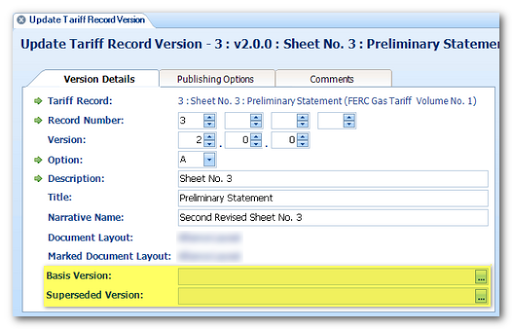
These fields are provided for backward compatibility with TFMS and with the old way of managing and filing sheet-based tariffs.

  • You would use these fields if you have configured TariffShark headers to include the sheet-style “Superseding” clause.
  • You might use these fields for your own internal recordkeeping purposes.
  • These fields are not required by FERC.
  • The data populated in these fields is not sent to FERC in the XML file.

If you have questions, please post them in the comments below or contact TariffShark Support.

TariffShark Dashboard: Document Processing

Background

The content of section-based and sheet-based Tariff Record Versions (TRVs) can be edited from within TariffShark using Microsoft Word. The “Edit Content” and “Build Content” commands provide this capability.  When you save a TRV’s content, TariffShark files the document away in the database in a temporary holding location and places it in line for content processing.  Content processing causes the TRV’s content to be stored in various formats needed to support XML generation, Tariff publishing, attachment assembly, and more.  At the conclusion of this process the TRVs content is permanently saved.

If you and other users are editing a lot of TRVs, the list (queue) of TRVs awaiting document processing can grow.  In addition, there are other activities that take place in TariffShark that cause TRVs to become queued for document processing.  For example, if you update a Filing’s FERC Filing Date field and that date appears in the footer of the Filing’s TRVs, all of these TRVs will be queued for document processing so that the footer can be updated to reflect the new FERC Filing Date.

Monitoring the Queue Via the Dashboard

Click the gauge icon on the toolbar (circled below)…or select “View | Dashboard” from the menu…or press Ctrl-D on your keyboard and the Dashboard is displayed.

The last two tabs of the Dashboard (“Processing Queue” and “Failed Processing”) display information that can help you monitor the document processing queue.

PROCESSING QUEUE

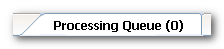
The “Processing Queue” tab lists all TRVs that are awaiting document processing.  Under normal work loads, this list will be very short or empty.  The number in parenthesis displays how many TRVs are in the queue.

FAILED PROCESSING


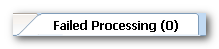
The “Failed Processing” tab lists all TRVs that failed document processing.  It is rare indeed that the document processing for a TRV will fail, however, it does happen on occasion.  The number in parenthesis displays how many TRVs have failed processing.  If the number displayed is greater than zero, the tab will turn red in color.

TRVs listed in the Failed Processing tab may be resubmitted for document processing by clicking the “Requeue” button.  Also, you can view a failed TRV’s content by clicking the “View Content” button.

If a TRV ever refuses to be processed successfully and gets stuck in the Filed Processing list, contact TariffShark Support and we will be happy to assist.

TariffShark Dashboard: Keep Tabs on Your Filings

Filings in TariffShark follow a very specific lifecycle: Draft -> Filed -> Complete.  It is up to you to update the status of your Filings to help move them through this lifecycle.  TariffShark’s Dashboard helps you keep tabs on your Filings and highlights Filings where it appears that the status has not been updated.

First, a little bit about Filing status…

DRAFT

All Filings start out in “Draft” status.  You may update all aspects of Draft Filings as they have not been filed with FERC.  TariffShark even allows you to delete Draft Filings.

FILED

A Filing has a “Filed” status once it has been submitted to and accepted by FERC. Certain data associated with a Filing must not be updated once it has been filed. By updating the status to “Filed”, TariffShark protects much of a Filing’s data so that you are unable to change it (either intentionally or unintentionally).

COMPLETE

Finally, after a statutory period elapses or after FERC issues an order in response to a Filing, its status is “Complete”, which is where it spends the rest of its days.

The Dashboard

Click the gauge icon on the toolbar (circled below)…or select “View | Dashboard” from the menu…or press Ctrl-D on your keyboard and the Dashboard is displayed.

The first two tabs of the Dashboard (“Draft Filings” and “Filed Filings”) display information that can help you monitor the status of your Filings.

DRAFT FILINGS TAB

The “Draft Filings” tab lists all Filings that have a status of “Draft”.  The “# Days” column describes the number of days until the FERC Filing Date (which is a data element on the Filing).  If the number of days displayed is negative, that means that the FERC Filing Date is in the future.  If you’ve been staying on top of things and updating your Filings to “Filed” status upon submitting them to FERC, you would expect all Draft Filings to have a negative “# Days” value.  The rows are highlighted in different colors to visually depict which Filings may require your attention.

  • Rows are white in the grid for Filings that are to be filed more than 7 days in the future.
  • Rows are yellow in the grid for Filings that are due to be filed in the next 7 days.
  • Rows are red in the grid for Filings whose FERC Filing Date has passed.  These are the Filings where either the Status or the FERC Filing Date has probably not been recorded accurately.

FILED FILINGS TAB

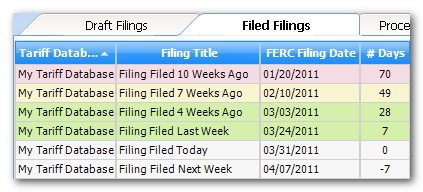
The “Filed Filings” tab lists all Filings that have a status of “Filed”.  The “# Days” column describes the number of days that have passed since the FERC Filing Date (which is a data element on the Filing).  If the number of days displayed is negative, that means that the FERC Filing Date is in the future.  The rows are highlighted in different colors to visually depict which Filings may require your attention.

  • Rows are white in the grid for Filings whose FERC Filing Date is today or in the future.
  • Rows are green in the grid for Filings that were filed within the last 30 days.
  • Rows are yellow in the grid for Filings that were filed between 31 and 60 days ago.
  • Rows are red in the grid for Filings that were filed more than 60 days ago.

The yellow and red rows are the ones most likely in need of attention.

TariffShark Documentation

Did You Know?

The complete documentation for TariffShark is right at your fingertips.  To open the TariffShark help system, simply select “Help | Help” from the TariffShark menu…or press the F1 key on your keyboard.  When you do, the help Table of Contents will be displayed.

The Table of Contents is an expandable and collapsible list of topics to help you more easily navigate the subject areas.  If you can’t find what you’re looking for in the Table of Contents, every page has a search box in the upper right-hand corner.  TariffShark’s help system uses Google search technology to help you find the content you seek.

Also, every help article is individually printable.  This allows you to print out only the articles that are most important to you.

TariffShark’s help documentation is stored on the Internet.  This enables us to update it as needed.  You do not have to wait for a software release in order to have access to the latest and greatest help information…it’s always right there.

Feedback

We wish to continually improve the help documentation.  We want it to be as complete and accurate as possible and super easy to understand…but we need your help.  If you see an area where the help documentation doesn’t meet your needs, let us know.  Send an email to support@tariffshark.com describing how we can make the documentation better.  If there’s a specific page that needs improvement, please send us the URL.