Category: Uncategorized

FERC Proposes to Ease Regulatory Burden for Certain Market-Based Rate Sellers

FERC Proposes to Ease Regulatory Burden for Certain Market-Based Rate Sellers

On December 20, the Federal Energy Regulatory Commission (FERC) issued a Notice of Proposed Rulemaking (NOPR) “to revise the horizontal market power analysis required for electric power sellers seeking to obtain or retain market-based rate authority in certain organized wholesale power markets.”

This NOPR helps to safeguard FERC’s “ability to prevent the potential exercise of market power by leaving in place other important protections to ensure just and reasonable rates” and it will “ease the regulatory burden for certain market-based rate sellers.” This NOPR will remove the requirement that sellers currently have to submit “indicative screens in any organized wholesale power market that administers energy, ancillary services and capacity markets subject to Commission-approved monitoring and mitigation.”

The NOPR is rooted in Order No. 697, because in that Order, FERC identified two screens to assess “horizontal market power for market-based rate sellers: the pivotal supplier screen and the wholesale market share screen. Each serves as a cross-check on the other to determine whether sellers may have market power and should be examined further when seeking market-based rates.”

In Order 697, two types of market-based rate sellers were created:

  • “Category 1 sellers are wholesale power marketers and wholesale power producers that own, control, or are affiliated with 500 MW or less of generation in aggregate per region; that do not own, operate, or control transmission facilities other than limited equipment necessary to connect individual generation facilities to the transmission grid – or have been granted waiver of the requirements of Order No. 888; that are not affiliated with anyone that owns, operates, or controls transmission facilities in the same region as the seller’s generation assets; that are not affiliated with a franchised public utility in the same region as the seller’s generation assets; and that do not raise other vertical market power issues. Category 1 sellers are not required to file regularly scheduled updated market power analyses
  • Market-based rate sellers that do not fall into Category 1 are designated as Category 2 sellers and are required to file updated market power analyses every three years”

The current market-based sellers that are “in organized wholesale power markets that do not administer these types of capacity markets… would be obliged to submit those indicative screens if they wish to sell capacity.” It also proposes that in the event of one of the screens failing, “market-based sellers in those markets may submit a delivered-price test or other evidence or propose other mitigation for capacity sales in these markets.”

All of the market-based sellers will “still be required to file a vertical market power analysis as well as an asset appendix, which provides comprehensive information relevant to determine a seller’s market power, including: generators owned or controlled by the seller and its affiliates; long-term firm power purchase agreements of the seller and its affiliates; and electric transmission assets, natural gas intrastate pipelines and intrastate natural gas storage facilities owned or controlled by the seller and its affiliates.”

Remove Warning When Saving Tariff Content That Contains Tracked Changes

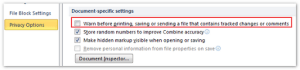
For reasons of privacy, there is a setting in Microsoft Word that tells Word to warn you any time you save or print a document that contains tracked changes.  TariffShark saves a lot of documents that contain tracked changes, so having to deal with the confirmation dialog can be rather tiresome.

The setting can be found under Privacy Options and, depending on the version of Microsoft Word you use, looks exactly or something like this:

Some TariffShark users have reported that after unchecking the “Warn before printing…” privacy option, it appears checked the next time they go into Microsoft Word.  It turns out that this option can be established by software policy, thus disabling users’ ability to change it.

For some users, we have found that a registry entry can be used to uncheck the “Warn before printing…” box.

For Microsoft Word 2010, create or update the REG_DWORD entry named fWarnRevisions_1125_1 setting it to 0 (meaning unchecked) which can be found under registry key HKCU\Software\Policies\Microsoft\Office\14.0\word\options\vpref.

For Microsoft Word 2013, create or update the REG_DWORD entry named fWarnRevisions_1125_1 to 0 (meaning unchecked) which can be found under registry key HKCU\Software\Policies\Microsoft\Office\15.0\word\options.

If you need assistance applying this fix or are interested in more details, contact TariffShark Support.

Document Layouts and Multi-Section Documents

For large tariffs that are managed in pieces (as either sections or sheets), TariffShark provides Document Layouts, Header Templates, and Footer Templates.  Document Layouts help ensure that the pieces of a large tariff have a consistent “look and feel” by, for example, applying a consistent font, page margins, and paragraph spacing.  With Header and Footer Templates, TariffShark automatically builds the headers and footers of your tariff sections or sheets, thereby allowing you to focus on the substantive content of your tariffs.

Our customers love these capabilities, but they don’t come without limits. For one, when using Header and/or Footer Templates, the underlying Microsoft Word document must contain only a single section. When tariff documents contain multiple sections, it is often so that the page orientation may be switched between portrait and landscape within the same document. Though TariffShark is unable to accurately apply headers and footers in a multi-section document, there are ways to work with such documents.

Option #1 – Decompose

If a tariff document is complex enough to switch between page orientations, consider breaking the document into smaller pieces. Instead of filing a tariff record as a large, complex document, it could be broken into multiple tariff records, each of which contains content that is only portrait or landscape.

Option #2 – Don’t Use Document Layouts, Header Templates, or Footer Templates

TariffShark offers great control over when Document Layouts, Header Templates, and Footer Templates are applied to the pieces of a tariff. If a piece of your tariff must be represented by a multi-section document, you can turn off Document Layouts, Header Templates, and Footer Templates for that tariff record, thus giving you total control over all aspects of the document, including the headers and footers within.

If you want to learn more about Document Layouts, Header Templates, and Footer Templates, contact TariffShark Support.

Fonts Change When I Build Content

If you are struggling with fonts changing when you import a Microsoft Word document into TariffShark, then this article is for you.  What you are experiencing is a designed behavior of Microsoft Word (and probably frustration).

Every Microsoft Word document contains an underlying style named “Normal”.  It forms the basis for the document’s appearance by establishing defaults for such characteristics as font (type face), font size, and paragraph spacing (among many other document characteristics).  Imagine that you have two documents: one is a research paper and the other is the bibliography for the paper.  Ultimately, you plan to merge these documents into a single document, but you find that it’s easier to work with them as separate documents while your research paper takes form. Further, imagine that the research paper’s Normal style names Times New Roman as the default font and the bibliography’s Normal style uses Courier New.

When you bring the two documents together, it would be strange to use different fonts (and your professor may even deduct points).  Microsoft Word understands this and tries to be smart when merging documents.  For example, if you copied the content of your bibliography and pasted it to the end of the research paper, the Courier New bibliography would appear as Times New Roman in the research paper document.  Similarly, if you copied the research paper and pasted it to the top of the bibliography, the Times New Roman research paper would appear as Courier New in the bibliography document.  Microsoft Word is essentially making the content that you paste into a document “blend in”.

So, what does this have to do with TariffShark?

Our customers sometimes get tariff content from outside parties who provide the content within Microsoft Word documents.  If a source Word document defines a different default font than what TariffShark defines in the Document Layout, when the content is brought into TariffShark, the content can adopt the default font from the Document Layout and take on a very different appearance.  If this isn’t what you intend, one solution is to create a new Document Layout whose Normal style establishes the correct default font.

If you have any questions relating to TariffShark’s Document Layouts and Microsoft Word’s Normal style, we will do our best to answer them.  Post your questions and comments below or contact TariffShark Support.