Category: How To

Moving or Copying a TariffShark Database

[Updated August 15, 2024]

Sometimes it is necessary to move or copy a TariffShark database from one server to another.  You might need to do this if you’re setting up a new production environment or refreshing a test environment with current production data.  This blog article describes the best practice procedure for cloning a TariffShark database.

  1. Backup the database you are copying using the SQL Server utility for this purpose.
  2. Restore the database to a different SQL Server Instance and/or different database, again, using the SQL Server utility for this purpose.
  3. The Audit table tracks web service method calls and responses for a TariffShark application server (which is done strictly for debugging reasons).  When establishing a new database, this data has little meaning when copied from another database.  As an optional step you may choose to TRUNCATE the Audit table.
  4. The Relationships table must be rebuilt in the restored database.  Run the following script statements in order to do this:
    USE […Name of the TariffShark Database…]
    GO
    EXEC admin.RebuildRelationships
    GO
  5. TariffShark Tiger is able to distinguish PROD environments from TEST ones.  In a TariffShark Tiger installation where PROD and TEST environments have been distinguished as such, your TEST environment will look like a PROD environment after the database restore.  In order to restore your TEST environment to “test” status, open a web browser and enter the following URL into the address bar:
    http[s]://<test_application_server_url>/Services/SetProduction.ashx?value=false

If you ever need to restore a TariffShark database, follow the procedure outlined above.  If you would like to know more about TariffShark databases or if you have any other questions, please comment below or contact TariffShark Support.

eTariff FTRV Level Associations

FERC’s eTariff rules allow you to associate a tariff record you are submitting with a previously filed tariff record.  In TariffShark terms, a Filed Tariff Record Version (FTRV) you are preparing to submit may be associated with an FTRV from an earlier Filing.  This article will explain why you might want to associate two FTRVs and how to do this in TariffShark.

An FTRV association tells FERC (a) to ignore the earlier-filed FTRV as you are no longer proposing that TRV for consideration and (b) to use the latter-filed one as a replacement proposal.  Upon OSEC acceptance of the second FTRV, FERC assigns a status of OBE (overtaken by events) to the first one (if it is still pending before the Commission).  The most common scenario where it would be appropriate to associate one FTRV with another is when filing a corrected FTRV (generally done in an amendment-type filing).  In this situation, the latter-filed FTRV is clearly a replacement for the earlier-filed one.

In TariffShark, associating an FTRV with another one can be done easily from the Update Filed Tariff Record Version screen.

  1. Open the Filing Details screen for the Filing you are preparing to submit to FERC.
  2. On the Tariff Record Versions tab, select the desired FTRV and click the Update FTRV command in the SmartBar (shown below), which will open the Update Filed Tariff Record Version screen.
  3. On the Update Filed Tariff Record Version screen, click the ellipsis button next to the Associated With field (shown below) to select an earlier-filed FTRV to which an association should be made.
  4. In the resulting pop-up form (shown below), (a) select the earlier Filing, (b) then select the earlier-filed FTRV in the grid, and (c) then click the Select button.
  5. Back on the Update Filed Tariff Record Version screen, click the Update button.

TariffShark Validations

Seems easy enough, right?  Well, the vanilla case described above is pretty straightforward.  However, there are more complex scenarios where it may or may not be appropriate to make an FTRV level association.  TariffShark does not pretend to understand all of the regulatory nuances surrounding the filing of tariff records.  Instead, it issues validation warnings in order to make you aware of opportunities to associate FTRVs and allows you to decide if it’s appropriate or not.

There are several validations in TariffShark that relate to FTRV level associations and most of these are very specific.  However, detailed below are the general purpose warnings.  Note that FTRV FERC Response (which describes the status of an FTRV) plays a big part in these validations.  Therefore, it is very important that you keep your FTRV FERC Response values accurately updated.

Validation R045

Filed Tariff Record Version (FTRV) “” is associated with another FTRV whose FERC Response is “Pending”. If the associated record has a status of “Pending” at FERC, submitting this Filing will cause the associated record’s status in the eTariff Viewer to become OBE (overtaken by events). Proceed with caution as this may not be what you intend.

Explanation of R045

If you have associated an FTRV with a Pending FTRV, this message appears.  In the vanilla case where you are submitting an amended FTRV, you would expect to see this validation warning.

Validation R046

Filed Tariff Record Version (FTRV) “” is not associated with another FTRV, yet one or more “Pending” FTRVs exist. If you intend to submit this FTRV as a replacement for one of the pending FTRVs, then you must associate this FTRV with the one you wish to replace.

Explanation of R046

If you have not associated an FTRV with another FTRV and one or more Pending FTRVs are present, this message appears.

Validation R047

[1] Filed Tariff Record Version (FTRV) “” is associated with another FTRV. [2] Tariff Record “” has child Tariff Records. Submitting this Filing will cause the associated record to become moot and its status in the eTariff Viewer to become OBE (overtaken by events). This automatic update in FERC’s software cascades to child Tariff Records also pending at FERC from earlier Filings. Under certain circumstances, this causes the child records to disappear…as if they hadn’t been filed. Proceed with caution!

Explanation of R047

The disappearance of child tariff records in FERC’s system happened to a TariffShark customer in 2010 after submitting a baseline eTariff filing followed shortly thereafter by a subsequent filing.  A complex combination of circumstances caused the child tariff records to disappear and such circumstances are not likely to be reproduced.  All the same, we felt it was prudent for TariffShark to warn eTariff filers of the potential issue.

If you would like to know more about FTRV-level associations or if you have any other questions, please comment below or contact TariffShark Support.


eTariff Filing Level Associations

FERC’s eTariff rules allow you to associate an eTariff filing with an earlier eTariff filing.  This article will explain why you might want to associate two filings and how to do this in TariffShark.

When submitting an eTariff filing that relates to, acts upon, or extends an earlier eTariff filing, you associate it with the earlier filing.  Based upon the type of filing you are preparing, you may or may not be required to make an association with an earlier filing.

Normal – A “normal” filing generally initiates a statutory action against an existing eTariff.  As such, an associated filing would not be expected.

New – A “new” filing establishes a new Tariff Id (FERC’s term for what TariffShark calls a Tariff Database).  Filing associations are not expected within this type of filing.

Refiled – Like a “new” filing, a “refiled” filing establishes a new Tariff Id.  Filing associations are not expected within this type of filing.

Compliance – The circumstances surrounding a “compliance” type filing vary greatly.  Sometimes it makes sense to associate a “compliance” filing with an earlier eTariff filing and sometimes it doesn’t.

Amendment – An “amendment” filing proposes changes to an earlier eTariff filing pending before the Commission.  Therefore, “amendment” filings should always be associated with an earlier filing.

Motion – A “motion” filing motions into effect tariff record from an earlier eTariff filing.  Therefore, “motion” filings should always be associated with an earlier filing.

Withdraw – The sole purpose of a “withdraw” type filing is to withdraw an earlier eTariff filing pending before the Commission.  Therefore, “withdraw” filings should always be associated with an earlier filing.

Report – A “report” filing is used to supplement the record of an earlier eTariff filing pending before the Commission.  Therefore, “report” filings should always be associated with an earlier filing.

Cancellation – A “cancellation” filing proposed to cancel an entire Tariff Id (FERC’s term for what TariffShark calls a Tariff Database).  Filing associations are not expected with this type of filing.

In TariffShark, associating a Filing with another one is straightforward.

  1. Use the “Update Filing” command in the SmartBar to open the Update Filing screen for the Draft Filing you are preparing.
  2. Click the ellipsis button next to the Associated Filing field to select an earlier Filing to which an association should be made.
     
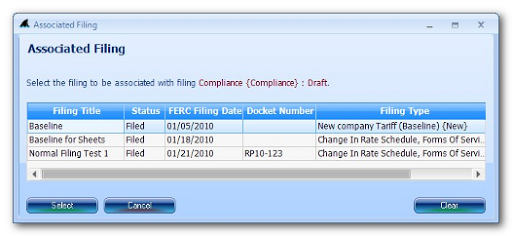
  3. Select the Associated Filing by clicking on it in the grid and then click the “Select” button.

If you would like to know more about Filing level associations or if you have any other questions, please comment below or contact TariffShark Support.

Back to Basics: Make a Filing Using TariffShark

This blog article outlines the steps that need to be taken in TariffShark in order to Create, Submit, and Record the Results of a basic eTariff filing (one that proposes textual changes to tariff content).

Although there are variations in the regulations that govern companies across the industries and FERC Programs that fall within the purview of eTariff, the steps outlined below are essentially the same.  This article uses generic terminology that applies across Programs.  However, some users must follow different procedures, so these are noted below.

Create

  1. Create Filing
  2. Update the details of the Filing
    In particular, Validation Email is needed for all Filings.  Other pieces of data may or may not be necessary for your particular Filing.
  3. Create Tariff Record (TR)
    If you are introducing a new section or sheet to an existing tariff, you would need to create a Tariff Record.  In most filings that are proposing textual changes to tariff content, new Tariff Records are not required.
    Note that when introducing a new tariff, you would create a Tariff in TariffShark.
  4. Create Tariff Record Version (TRV)
    Tariff content exists in TariffShark in TRVs.  A TRV is a version of a Tariff Record.  Whenever you propose content changes to a TR, a new TRV is required.
  5. Build TRV Content
    The TRV created in step 4 has no tariff content until you put content in it.  In this step you tell TariffShark how to create (or build) content for the new TRV.
    Note that if the TRV belongs to a “whole document” TR, you must skip this step.
  6. Edit TRV Content
    Editing the TRV’s content opens it in Microsoft Word where you may make the desired textual changes to the content.  Changes are typically made in Word’s “track changes” mode so that the changes are automatically “marked” as you enter them.
    Note that oil industry filers don’t use “track changes” mode.
    Note also that if the TRV belongs to a “whole document” TR, this step involves uploading the content as opposed to editing it in Microsoft Word.
  7. Repeat 3-6 as needed to make additional textual changes to tariff content.
  8. Write the Transmittal Letter for your Filing and upload it to TariffShark as a FERC Attachment.
  9. Your Filing may require additional FERC Attachments.  Create and upload these into TariffShark.

Submit

  1. Validate your Filing.  TariffShark will apply dozens of validation rules to your Filing and alert you to potential issues.
  2. Generate FERC XML and download it from TariffShark.
  3. Submit your filing to FERC at http://www.ferc.gov/docs-filing/efiling.asp.
  4. Update the Status of your Filing to “Filed” in TariffShark.

Record the Results

  1. In some Programs and some filing scenarios, FERC will issue an order telling you what they think of your Filing.  Other times, no news is good news and after a period of time your tariff changes may be considered effective.  In any event, when the time is right…
  2. Update the Status of your Filing to “Complete” in TariffShark.
  3. Update (a) the status (called FERC Response in TariffShark) of the TRVs in your Filing and also (b) the FERC Effective Date.  The “Record FERC Order” screen in TariffShark simplifies this process.

This article has presented a simplified view of the TariffShark steps to creating, submitting, and recording the results of a basic eTariff filing.  Though some complexities lurk within the steps listed above, feel free to refer back to this article as a basic reference or checklist of the TariffShark steps when working on such filings.  Future blog articles will dive deeper into some of the steps outlined above.  More complex eTariff filing scenarios (such as cancellations, withdrawals, amendments, and motions) will be addressed in future blog articles, as well.

If you have questions or comments, please post them below or contact TariffShark Support.